When will my Valkey or Redis cache run out of memory? Sizing it with the Cache Size Simulator
TL;DR: 'how big should this cache be?' is usually answered with used_memory and a guess. The Cache Size Simulator measures what your keys actually weigh, by type, projects growth and TTLs forward, and tells you when you hit maxmemory, what your eviction policy will do then, and which cloud node still fits in six months. On a normal keyspace it landed within 0.14% of the true size. On very skewed keyspaces the range is wide; fixing that is next.
"How big should this cache be?" is one of those questions that sounds simple until someone asks you to put a number in a capacity plan. Then it becomes "how big is it now", "how fast is it growing", "what happens when it's full" and "which instance type does that translate to", and each of those has its own trap.
Most teams I've worked with answer it the same way. Look at used_memory in INFO, look at the graph for the last month, draw a line with your eyes, add some headroom, pick the next instance size up. It works until it doesn't, and when it doesn't you usually find out from an OOM error or a hit rate that quietly fell off a cliff.
The Cache Size Simulator in BetterDB Monitor is meant to replace the eyeballing with something you can actually defend. Here is what it does, how to read it, and where it's still wrong. I'll say Valkey throughout, but everything below works the same on Redis OSS, ElastiCache for Redis OSS and the other RESP-compatible databases BetterDB supports.
1 - The usual answer, and why it's wrong
used_memory is a fine number. It's just answering a different question.
- It includes things that aren't your data. Client buffers, replication backlog, Lua scripts, allocator overhead. On a busy instance with many clients, that can be a big part of the total.
used_memory_datasetis closer, but it is still a single number with no breakdown. - It tells you nothing about what the data is made of. 100 MB of tiny session strings and 100 MB made of six huge hashes grow in completely different ways. One grows with traffic, the other grows with whatever someone keeps appending to those hashes.
- It ignores TTLs. A cache with a 7-day TTL on every key doesn't grow forever. It levels off at roughly "keys per day × 7". If you extrapolate the first week of a new cache in a straight line, you'll massively oversize it.
- It doesn't tell you what happens at the limit. Hitting
maxmemorywithallkeys-lrumeans evictions and a lower hit rate. Hitting it withnoevictionmeans writes start failing. Hitting it withvolatile-lruand no TTLs on your keys means, surprise, the same asnoeviction.
So the useful questions are really: what do my keys weigh, how fast is the count growing, does it level off, when do I hit the wall, and what happens when I do.
2 - What the simulator actually measures
The short version: it counts key types cheaply on a lot of keys, and spends the expensive sizing calls where sizes vary the most.
When you open the page, it shows the INFO figures straight away: used memory, maxmemory, eviction policy, key count. Then it starts sampling in the background. It walks the keyspace with SCAN and asks each sampled key for its TYPE and MEMORY USAGE. It never uses KEYS or RANDOMKEY, and every command it sends is read-only, so it's safe to run against production.
A plain random sample has an obvious problem: if you have a million small strings and a handful of huge hashes, almost every sample is a string, and the hashes barely move the needle. So the sampler is stratified by type:
- It counts types on up to 10 times as many keys as it sizes, because counting is cheap and sizing is not. The type mix ends up accurate even when sizing is the expensive part.
- It then spends the rest of its budget on the types whose sizes vary the most, using
SCAN … TYPE, so a few large hashes aren't drowned out by millions of small strings. - It starts at 4,000 keys and keeps going until the 95% range is within about ±5% of the estimate, up to 50,000 keys or 60 seconds. Types that look heavily skewed get at least 20,000 samples.
What you get is a dataset size with a range and a per-type breakdown: how many keys of each type, their average size and how many were sampled. The range is a 95% confidence interval, and it is never narrower than the gap between the sampled total and the used_memory_dataset the server reports. That last rule matters, because a sample can't see a key it never picked. If one giant key was missed, you get a wide range instead of a confident wrong answer.
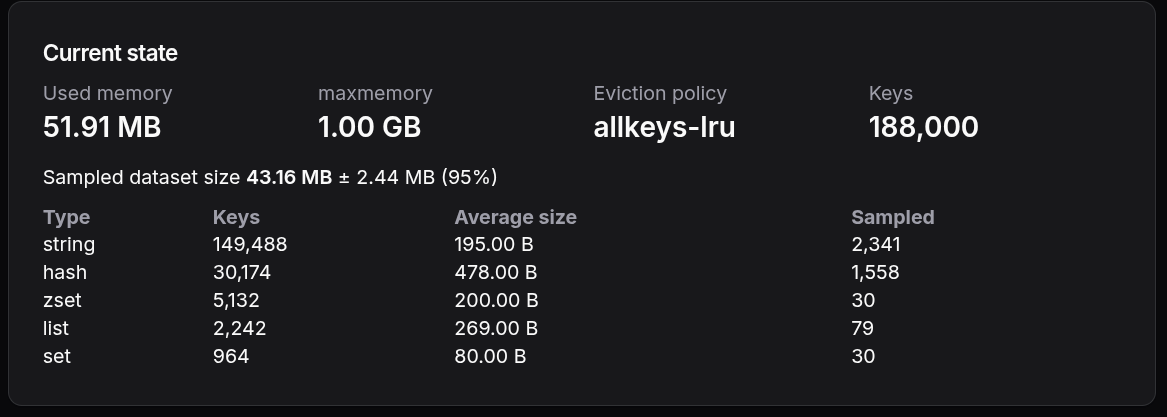
To check it, I seeded a test instance with 188,000 keys of mixed types: about 150,000 strings, about 30,000 hashes and a few thousand sorted sets, lists and sets. Then I measured the exact MEMORY USAGE of every single key, so I knew the real answer: 43.10 MB. The simulator sampled 4,038 keys, about 2% of the keyspace, and said 43.16 MB ± 2.44 MB. That's 0.14% off the true value, and it gave the same answer on every rerun.
On a cluster, every primary is sampled, with the budget split in proportion to their key counts. maxmemory is summed across primaries. If the primaries don't all use the same eviction policy, the page says so instead of picking one.
3 - Projecting forward: growth, TTLs and maxmemory
Below the measurements there is a set of inputs, all prefilled from data and all editable:
- Growth rate, in keys per day, fitted from the last 30 days of stored history.
- In-place growth: memory growth that new keys don't explain, like lists, streams or hashes that keep getting longer. It's added on top.
- Key TTL: if your keys expire after N days, the key count levels off at rate × N.
- Average key size, from the sample.
- maxmemory, from INFO.
The chart redraws as you type, over 30 days, 90 days or 6 months, with the 95% band, the maxmemory line and a line at 80% of it. Below it you get the sentence you actually care about: when you reach maxmemory, and what your eviction policy will do when you get there.
On the same test instance, with a 1 GB maxmemory and allkeys-lru, I tried two scenarios.
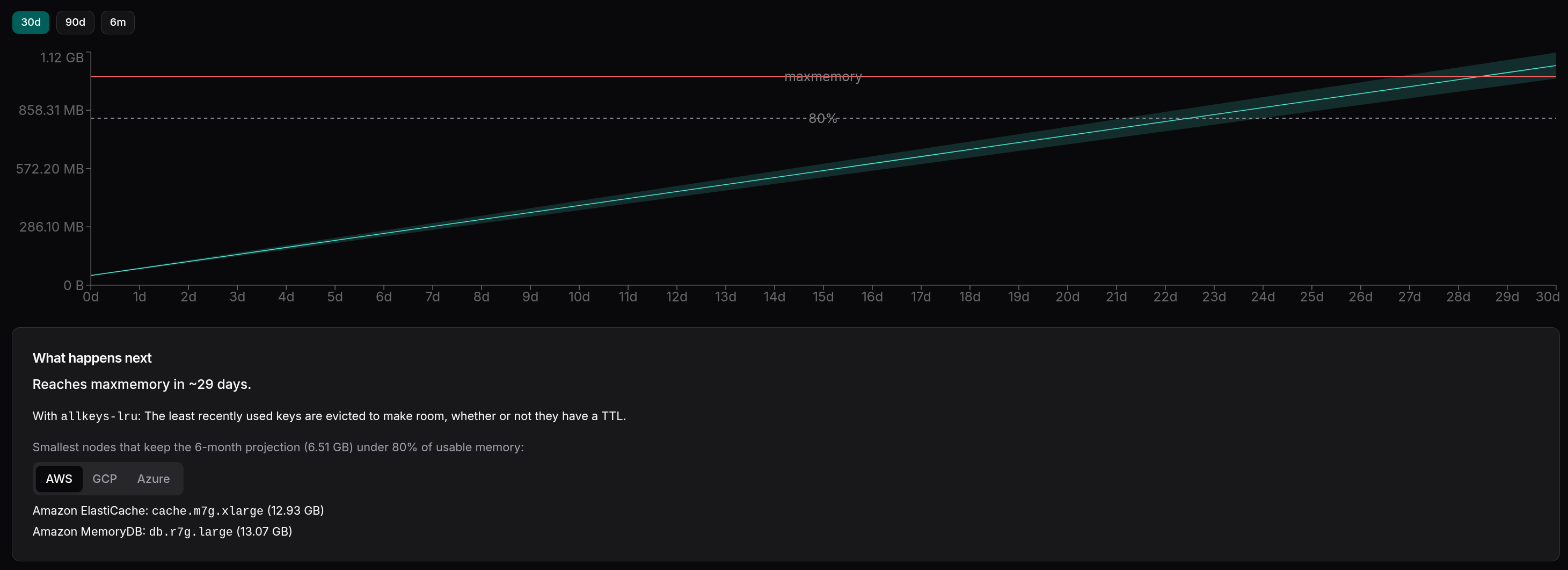
First, growth set to 150,000 keys per day and no TTL. The page said "Reaches maxmemory in ~29 days". You can check that by hand, as long as you keep the units straight: the page reports binary units, so its 1 GB maxmemory is 1,024 MiB. The projection starts from used memory, about 47.6 MiB, which leaves about 976 MiB of headroom. 150,000 new keys a day at 241 bytes each is about 34.5 MiB a day, and 976 ÷ 34.5 is about 28.3 days, so the line crosses maxmemory during day 29. On the 30-day view, it crosses the 80% mark around day 22 and maxmemory before the month is out:
Then the same growth, with a 7-day TTL. The curve flattens and levels off at about 245 MiB, nowhere near maxmemory, for the whole six months. That's the "keys per day × TTL" behaviour from section 1: the key count settles at 150,000 × 7 = 1.05 million keys, and 1.05 million × 241 bytes is about 241 MiB. The other 4 MiB is memory that isn't key data (buffers, allocator overhead), which the projection carries forward as a fixed amount. It's exactly the case where a straight-line guess would have told you to buy a much bigger node:
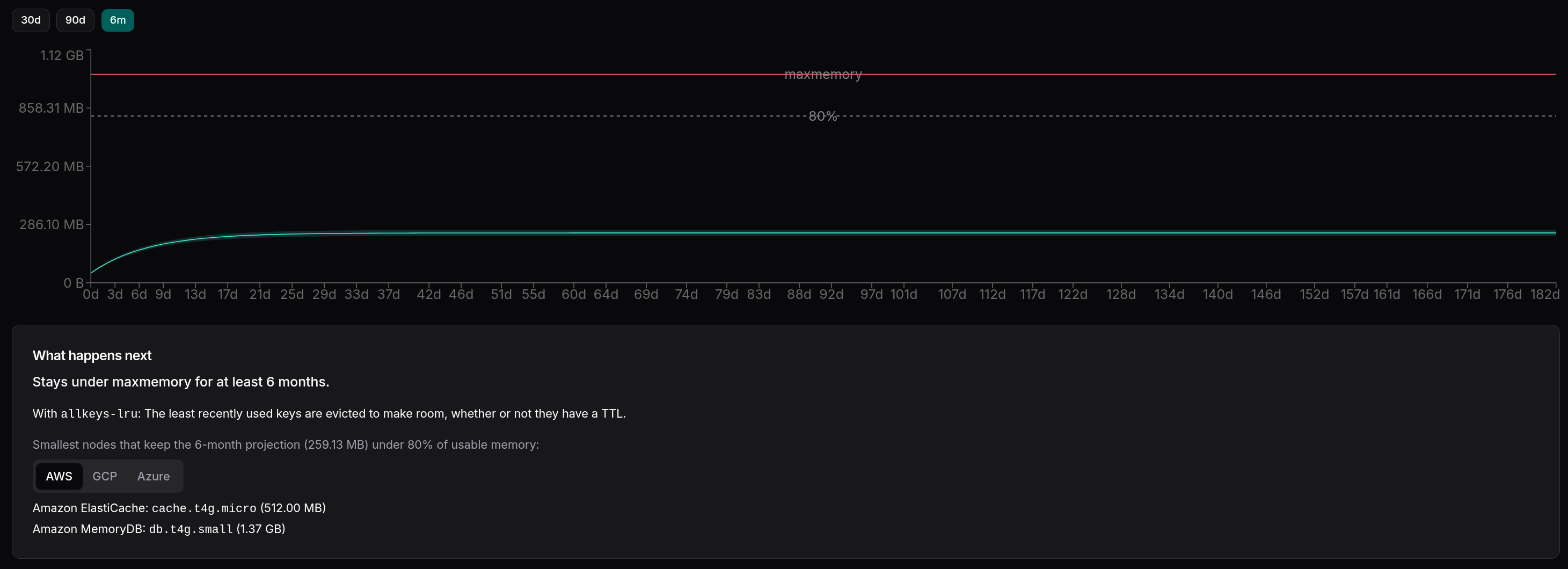
One thing to know when you read that number: the TTL input applies to every key, including the ones already in the instance, so the model assumes the 188,000 existing keys expire and get replaced too. In my test they had no TTL, so in reality they would stay, and the plateau would be about 43 MiB higher, roughly 288 MiB. If most of your current keys don't expire, add them on top.
The TTL scenario is the reason I like this page. You can play "what if" in a few seconds: what if traffic doubles, what if we drop the TTL from 30 days to 7, what if we raise maxmemory. Each of those used to be a spreadsheet.
4 - Picking a node
The last part of the page answers "so what do I buy?". It lists the smallest nodes on AWS (ElastiCache and MemoryDB), GCP (Memorystore for Valkey) and Azure (Azure Cache for Redis) that keep the 6-month projection under 80% of usable memory.
"Usable" is doing a lot of work in that sentence, because the providers don't agree on it:
- ElastiCache reserves 25% of node memory by default (
reserved-memory-percent), so 75% of the node is usable. - MemoryDB sets maxmemory to the full node memory, so all of it counts.
- Memorystore for Valkey defaults the writable keyspace to 80% of the node.
- Azure Cache for Redis reserves about 10% for
maxmemory-reservedand another 10% for fragmentation by default, so 80% is usable.
On top of that, Memorystore caps an instance at 250 usage units, counted as shards × (1 + replicas). The node picks assume one replica per shard, so a single instance tops out at 125 shards.
These are capacity only, no prices, checked against each provider's published specs. Prices change too often and depend too much on your discounts for me to want them baked into a chart.
5 - Where it falls short today
I promised honesty, so here it is.
I added six very large hashes to the same test instance, 20,000 fields each, hidden among the other 188,000 keys. Measured key by key, the real total went up to 73.1 MB.
The simulator said 43.2 MB ± 32.2 MB.
The true value is inside that range, so by its own rules it did its job. But "somewhere between 11 and 75 MB" is not a number you can plan with. What happened is exactly the trap from section 2: the sample never picked any of the six big hashes, so the hash average came out at 478 bytes instead of the real 1,526. And because the sample never saw them, the hashes didn't look skewed, so it stopped at about 4,000 samples instead of moving to the 20,000 it uses for skewed types. The only thing that widened the range was the used_memory_dataset floor.
The floor did what it's there for: it stopped the page from confidently telling me 43 MB. But it should also be read as a signal. If the gap to what the server reports is that big, keep sampling, lean towards the server's number, and tell the user that some big keys were probably missed. That's next on my list.
Two smaller things on the same list: the node-sizing figure is the top of the range, not the middle line of the chart, and the page should say so. And the chart labels overlap when maxmemory and the 80% line are close together. Neither is hard, both are annoying.
So: on a normal keyspace the estimate is tight, 0.14% off in my test. On a keyspace dominated by a handful of monsters, it currently errs towards "wide and honest" rather than "narrow and wrong". I'd rather ship that than the reverse, but I'd rather ship neither.
So, how should you use it?
A few habits that I'd recommend:
- Check the range before the headline. If the ± is small, trust the number. If it's large, that usually means a few big keys are hiding in a type, and the per-type breakdown will tell you which one.
- Put in your real TTLs. The single biggest difference between a good and a bad sizing estimate for a cache is whether the keys expire. If they do, the curve flattens and you probably need a smaller node than you think.
- Read the eviction policy sentence. If it says writes will fail at maxmemory, or that
volatile-*has nothing to evict because your keys have no TTL, that's worth fixing before you resize anything. - Use node picks as a starting shortlist, not a purchase order. Replicas, multi-AZ and your own headroom policy are still your call.
If you already run BetterDB Monitor, the Cache Size Simulator is in the sidebar from v0.52.0. If you don't, this is all it takes to point one at your instance:
docker run -d --name betterdb -p 3001:3001 \
  -e DB_HOST=your-valkey-host -e DB_PORT=6379 \
  betterdb/monitor:latest
Open localhost:3001, go to Cache Size Simulator, and you'll have the INFO figures immediately and the sampled estimate a few seconds later. The Docker install guide covers passwords, TLS and the other options, and the Cache Size Simulator docs go deeper on the sampling and the provider numbers.
If it gets your numbers wrong, I want to know. Open an issue and tell me what your keyspace looks like.